How to Download and Apply MB WhatsApp Themes in 2026
One of the most exciting features of MB WhatsApp is its extensive theming system. Unlike official WhatsApp, which only offers light and dark modes, MB WhatsApp lets you completely transform the look of your messaging experience with custom themes. This guide shows you how to find, download, and apply themes in 2026.
What Are MB WhatsApp Themes
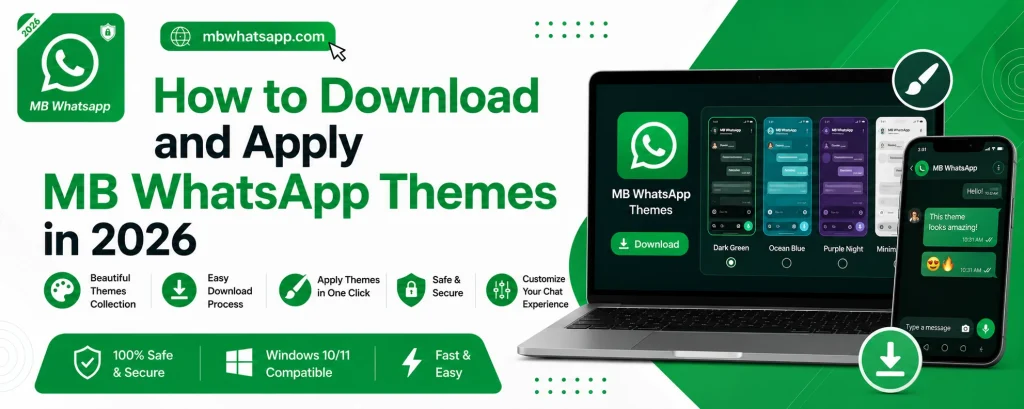
Themes in MB WhatsApp are custom visual packages that change the colors, fonts, icons, chat bubble styles, and overall appearance of the app. A theme can transform MB WhatsApp from its default look into something completely unique, whether you prefer a minimalist design, vibrant colors, a dark aesthetic, or a seasonal style.
Where to Find MB WhatsApp Themes
MB WhatsApp has a built-in theme store that provides access to hundreds of themes created by the community. You can access it directly from within the app. Additionally, mbwhatsapp.com sometimes features theme packs and links to popular theme collections with major updates.
How to Access the Built-In Theme Store
- Open MB WhatsApp on your Android device
- Tap the three-dot menu at the top right
- Go to MB WhatsApp Settings
- Tap on Themes
- Browse through the available themes in the theme library
The theme store organizes themes into categories such as dark themes, colorful themes, minimal themes, and seasonal collections. You can preview each theme before applying it.
How to Download and Apply a Theme
From the Built-In Theme Store
- Open the Themes section in MB WhatsApp Settings
- Browse and select a theme you like
- Tap Download and wait for it to complete
- Tap Apply to activate the theme immediately
The changes take effect right away without needing to restart the app.
From External Theme Files
Some themes are shared as files with a .xml or .wadark extension. To apply these:
- Download the theme file to your phone
- Copy or move it to the MBWhatsApp > Themes folder in your internal storage
- Open MB WhatsApp and go to Settings > Themes
- Tap on the Import option and select your downloaded file
- Apply the imported theme
| Theme Format | How to Apply |
|---|---|
| Built-In Store Theme | Download and apply within the app |
| .xml File | Import via Themes settings |
| .wadark File | Import via Themes settings |
Creating Your Own Custom Theme
MB WhatsApp also allows advanced users to create their own themes. While this requires some technical knowledge, the process is rewarding if you want a truly unique look.
Basic Theme Customization
- Go to MB WhatsApp Settings > Themes
- Tap the current theme and select Edit or Customize
- Adjust colors for various elements like the header, chat bubbles, and background
- Save your changes as a new theme
Changing Wallpaper Separately
If you just want to change the chat background without applying a full theme:
- Open any chat
- Tap the three-dot menu inside the chat
- Select Wallpaper
- Choose from preset wallpapers, your gallery, or a solid color
Tips for Getting the Best Themes
- Preview themes before downloading to make sure they suit your style
- Stick to themes from the official MB WhatsApp theme store for reliability
- Check mbwhatsapp.com for featured themes with major app releases
- Keep a note of theme names you like so you can reapply them after updates
Popular Theme Categories in 2026
- Dark AMOLED themes for battery saving on OLED screens
- Nature-inspired themes with gradient backgrounds
- Minimal flat design themes for a clean look
- Neon and cyberpunk themes for a bold aesthetic
- Seasonal themes tied to holidays and events
Frequently Asked Questions
1. Do themes affect MB WhatsApp’s performance? Well-designed themes have minimal impact on performance. However, very complex themes with large image files may cause slight slowdowns on older devices.
2. Will my theme be removed when I update MB WhatsApp? Applied themes usually persist through updates. However, after a major update, you may need to reapply your preferred theme.
3. Can I share my custom theme with friends? Yes. Export your theme file and share it. Your friend can import it using the same method described in this guide.
4. Are themes free in MB WhatsApp? Yes. All themes in the built-in MB WhatsApp theme store are free to download and apply.
5. Where can I get MB WhatsApp with theme support? Download the latest version with full theme support from mbwhatsapp.com.
Conclusion
The theming system in MB WhatsApp is one of its most celebrated features. With hundreds of themes available in the built-in store and the ability to import custom files, you can make your messaging experience look exactly the way you want it. Visit mbwhatsapp.com to download the latest version and start exploring the world of MB WhatsApp themes today.